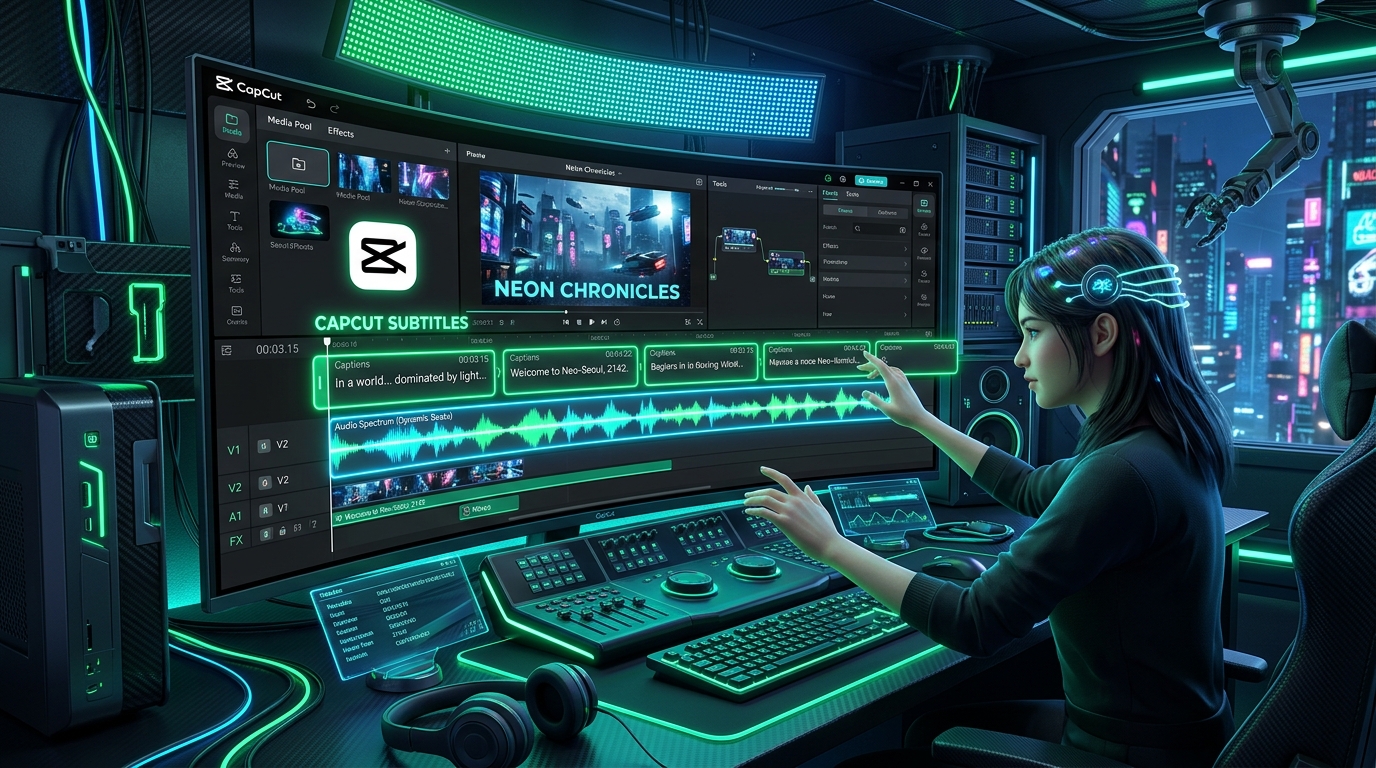
If you have ever imported an SRT subtitle file into CapCut Desktop or CapCut Mobile, only to find that sentence endings get cut off, lines wrap awkwardly, or sub-captions disappear from the screen, you are not alone. CapCut enforces strict internal rules for subtitle line length and duration, making it crucial to use properly formatted SRT files for a seamless editing experience. In this ultimate 2026 guide, we are going to dive deep into exactly why CapCut behaves this way, how subtitle parsers work under the hood, and how you can export perfectly formatted subtitles every single time without writing a line of code or manually adjusting timestamps in your timeline.
1. Introduction: The CapCut Subtitle Dilemma
Video editing has undergone a massive paradigm shift. In the past, editing software like Adobe Premiere Pro, Final Cut Pro, and DaVinci Resolve dominated the market. These tools were built for long-form narrative editing, where subtitles (also known as Open Captions or Closed Captions) were an afterthought, usually handled by broadcast standards like CEA-608 or CEA-708.
Enter CapCut. Developed by ByteDance (the parent company of TikTok), CapCut was built from the ground up for the short-form, mobile-first video generation. Because subtitles are a core pillar of short-form content retention, CapCut integrated advanced text engines and dynamic typography right into the timeline. However, this focus on short, punchy, animated text created a massive problem for traditional SRT files.
When a creator generates an SRT file using standard transcription services and imports it into CapCut, the result is almost always a disaster. Lines run off the edges of the vertical video canvas, text gets arbitrarily truncated midway through a sentence, and timing blocks fail to trigger the built-in animation templates correctly. This "CapCut Subtitle Dilemma" costs creators hours of manual adjustment time.
2. Under the Hood: Understanding CapCut's Subtitle Engine
To fix the truncation issue, we first have to understand how CapCut's internal subtitle parsing engine actually works. Unlike traditional video editing software which relies on standard text-wrapping algorithms (i.e., if a line of text is too long for the bounding box, it wraps to the next line), CapCut's engine treats imported .srt captions with rigid structural boundaries.
CapCut treats every individual SRT timestamp block as a unique, self-contained Text Object Keyframe. When you apply an animation (like a "Pop In" or "Typewriter" effect) in CapCut, the animation engine calculates the timing based on the start and end time of that specific Text Object. If the text object contains an entire paragraph of text (which is common for raw AI transcripts), the animation will try to squish a 10-second typing effect into a massive block of text, rendering it unreadable.
Because of this architecture, CapCut imposes hard limits on what can be contained inside a single Text Object. If an imported SRT block violates these hard limits, CapCut does not try to be smart and fix it—it simply slices the data off, resulting in the dreaded truncation.
3. Why Raw AI SRT Files Always Fail in CapCut
The root of the problem lies in how AI speech-to-text models like OpenAI's Whisper are designed to output text. By default, transcription models are optimized to provide logical, sentence-level boundaries. When exported as a generic SRT file, a single block might look like this:
Take a close look at the SRT block above. It contains 218 characters and runs for a staggering 8.3 seconds. For a blog post, this is a perfectly normal sentence. But for a CapCut video, this is a catastrophic failure waiting to happen.
When CapCut parses this block, it immediately flags it as violating two of its primary constraints: the line length limit and the block duration limit. As a result, CapCut's subtitle parser will violently cut this text off after the 42nd character, leaving the vast majority of your sentence entirely invisible to the viewer! If you are also editing in other software, you might want to learn how to sync subtitles in Premiere Pro and DaVinci Resolve to avoid cross-platform headaches.
4. The 42-Character Rule Explained
The most notorious limitation in CapCut is the 42-Character Rule. CapCut was originally designed for mobile screens (specifically a 9:16 aspect ratio). On a standard smartphone screen, using a highly legible font size (like 40pt to 50pt Arial or Roboto), 42 characters is the absolute maximum amount of text that can fit across the width of the screen before it bleeds off the edges.
To prevent text from rendering outside the visible canvas area, ByteDance engineers hardcoded a truncation limit into the SRT import parser. If a single line of text in your SRT file contains 43 characters, CapCut will read the first 42 characters, display them, and delete the 43rd character.
This is incredibly frustrating because English words vary wildly in length. A 42-character limit might mean you can fit 8 short words, or only 4 long words. Trying to manually edit an SRT file in Notepad to ensure no line exceeds 42 characters is an exercise in madness. It requires counting characters manually for every single caption block in a 10-minute video, which could take hours.
5. The 7-Second Rule and Timing Disconnects
Beyond character limits, CapCut also strictly enforces timing limits. The most critical of these is the 7.0 Second Duration Rule.
In CapCut, dynamic text animations (like Karaoke highlights or Spring bounces) need a tightly bounded timeframe to execute smoothly. If a caption block stays on the screen for longer than 7 seconds, CapCut's internal timeline logic often treats it as a corrupted or invalid block. In many versions of CapCut Mobile, blocks longer than 7 seconds are simply dropped during the import process, leaving a massive gap of silence in your subtitles.
Conversely, there is also a minimum display time constraint. Rapid-fire captions under 800 milliseconds risk disappearing before the human eye can process the words. CapCut's animation engine struggles to trigger "In" and "Out" animations if the clip duration is shorter than the animation keyframes themselves. Therefore, perfectly formatted subtitles must be meticulously balanced: they must be shorter than 7 seconds, longer than 0.8 seconds, and contain fewer than 42 characters.
6. Step-by-Step: The ScribeStamp Solution
This is exactly why we built ScribeStamp. ScribeStamp features a bespoke, built-in CapCut Subtitle Tuner Engine. When transcribing your audio or video file, ScribeStamp does not just spit out raw paragraph blocks. Instead, it evaluates the word-level microsecond timestamps and automatically re-segments the output into perfectly optimized SRT blocks that CapCut will parse flawlessly. For a deeper dive into the math behind this, check out our comprehensive guide on word-level timestamps.
Here is the exact step-by-step workflow to guarantee perfect CapCut subtitles:
Step 1: Upload Your Media to the Cloud
Drag and drop your MP3, WAV, M4A, or MP4 file into the ScribeStamp Studio Dropzone. The file is securely uploaded to our processing servers. You can upload video files up to 2 hours in length without worrying about local RAM constraints.
Step 2: AI Word-Level Alignment
Behind the scenes, ScribeStamp utilizes an advanced neural acoustic model to process your speech. Crucially, it calculates microsecond-precision timestamps for every single word. This word-level mapping is the secret sauce that makes the CapCut auto-tuner possible.
Step 3: Algorithmic Re-segmentation
Once the transcription is complete, navigate to the CapCut Tuned SRT tab. Before generating the file, ScribeStamp runs an algorithmic pass over the word data. It loops through the text and says: "Add words to this line until we hit 38 characters (leaving a safety margin below 42). Once we hit 38 characters, take the exact timestamp of the last word, close the SRT block, and start a new block."
Step 4: Import to CapCut
Download the tuned .srt file. Open your CapCut project, navigate to Text > Local Captions > Import, and select the file. Because ScribeStamp has already done the heavy lifting, CapCut will import hundreds of caption blocks instantly. Every block will be perfectly centered, under the character limit, and synced flawlessly to the audio wave.
7. Advanced Typography & Animations in CapCut
Now that your subtitles are perfectly imported without truncation, you can take advantage of CapCut's incredibly powerful typography engine. Because your subtitles are split into short, punchy 1-to-3 second blocks, animations will look incredibly crisp.
- The Hormozi Style (Bold, Centered, Stroke): To achieve the classic "Alex Hormozi" style, select all your imported captions in the timeline. In the Text Inspector, change the font to The Bold Font or Montserrat Black. Set the font size to 15%. Add a black Stroke (thickness 30%) and a black Drop Shadow (Blur 0%, Distance 15%). Because ScribeStamp capped your lines at 38 characters, this massive font size will fit perfectly on a 9:16 screen without wrapping!
- Applying Global Animations: Still with all captions selected, go to the Animation tab. Choose an "In" animation like Spring or Pop In. Set the duration to 0.2 seconds. Now, every single short caption block will pop onto the screen dynamically, keeping the viewer's eyes glued to the center of the frame.
- Karaoke Highlight Colors: If you want certain words to highlight in green or yellow as they are spoken, you can use CapCut's built-in Auto-Captions feature in combination with ScribeStamp's exact timing blocks. By providing CapCut with clean, short blocks, its internal engine can easily map the audio to the text for those kinetic color fills.
8. Workflows: TikTok Shorts vs YouTube Long-Form
It is vital to recognize that the strategy for subtitles changes depending on the platform you are targeting. The "CapCut Subtitle Dilemma" is primarily a problem for short-form vertical video, but the lessons apply universally.
For TikTok, Instagram Reels, and YouTube Shorts:
Attention spans are measured in milliseconds. You want extremely short, fast-moving captions. 1 to 3 words per line is ideal. This rapid visual change acts as a pattern interrupt, resetting the viewer's attention span every second. ScribeStamp's CapCut Tuner is aggressively optimized for this exact pacing. If you are generating visual b-roll for these shorts, check out our guide on automating AI B-roll generation with Flux and Runway.
For YouTube Long-Form (16:9) and Documentaries:
Rapid-fire captions in a 20-minute video will exhaust the viewer. For long-form content, you should allow longer sentences (up to 2 lines maximum) to remain on screen for a longer duration. If you are editing a long-form podcast, you can use ScribeStamp's standard SRT export (which uses more relaxed sentence-level wrapping) and pair it with our automatic YouTube chapter generator to structure the video perfectly.
9. Troubleshooting Common Sync & Drift Errors
Even with a perfectly formatted SRT file, you might encounter edge cases depending on your specific hardware and software configurations. Here are the most common CapCut subtitle errors and how to solve them:
Error: Subtitles slowly drift out of sync over time.
The Fix: This is almost always caused by a framerate mismatch (specifically 23.976 fps vs 24.00 fps, or 29.97 fps vs 30.00 fps). The audio is drifting slightly out of phase with the video timeline. ScribeStamp outputs absolute microsecond real-time timestamps, so the SRT file is mathematically perfect. To fix this in CapCut, ensure your project framerate exactly matches your source video framerate before importing the SRT.
Error: "Invalid File Format" when importing SRT.
The Fix: CapCut expects standard UTF-8 text encoding. If you opened the SRT file in a program like Microsoft Word or TextEdit and saved it, the software may have injected hidden rich-text characters or changed the encoding. Always open and edit SRT files in a plain text editor like VS Code or Notepad, and ensure the file is saved with UTF-8 encoding.
10. CapCut Subtitle Formatting Cheat Sheet
To summarize the technical rules discussed in this guide, bookmark this cheat sheet for your next editing session:
| Parameter | CapCut Internal Rule | ScribeStamp Auto-Tuner Handling |
|---|---|---|
| Max Line Length | Strictly 42 characters before forced truncation. | Dynamically capped at <= 38 chars to guarantee a 10% safety margin. |
| Max Block Duration | 7.0 seconds maximum. Blocks exceeding this may be dropped. | Algorithmically splits long sentences at natural punctuation pauses (max 4.5s). |
| Min Block Duration | 0.8 seconds minimum for reliable animation triggering. | Automatically pads extremely short micro-words to a minimum 800ms visual window. |
| Timestamp Format | 00:00:00,000 (Standard SubRip format) | Generates compliant SubRip formatting utilizing Whisper Turbo's microsecond accuracy. |
11. Conclusion & Next Steps
Subtitles are no longer just an accessibility feature; they are a fundamental pillar of video retention strategy. When viewers watch content on mute (as over 70% of mobile users do), your text is the only thing keeping them from swiping away.
By understanding how CapCut's parsing engine works and utilizing purpose-built tools like ScribeStamp's CapCut SRT Tuner, you can completely eliminate the headache of truncated text, manual line-breaks, and broken animations. You can stop fighting your editing software and get back to what actually matters: creating incredible content.
Ready to supercharge your workflow? Head over to the ScribeStamp Studio, drop in your latest audio file, and experience perfect CapCut subtitles in seconds. If you are looking to take your video optimization even further, read our guide on the best Whisper speech-to-text models available right now.